App
Installing S5 on iPhone, Android or the mobile browser
Updated 2 November 2026
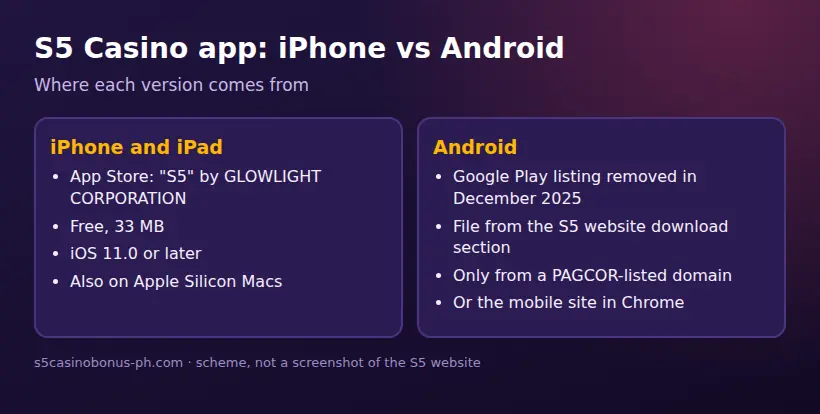
S5 Casino app users on iPhone should install “S5” by GLOWLIGHT CORPORATION from the App Store; Android players should download the APK only through a PAGCOR-listed S5 domain or use S5 in Chrome. Google Play removed the Android listing in December 2025. The app, APK file and mobile website are separate ways to access the same operator.
01 · App
Which S5 download should you use?
S5 Casino is the casino operator; the iPhone app, Android APK and mobile website are different ways to access it. S5 is run by Glowlight Corporation, a Philippines-registered company. PAGCOR’s list dated 20 October 2026 includes Glowlight Corporation, the S5 Arena brand and S5 Casino among its brand names. That listing does not mean every site or file using the S5 name is recognised: use a domain on the list, such as www.s5.com or s5casino.ph.
The Google Play listing for the Android app was removed in December 2025. iPhone users can find “S5” by GLOWLIGHT CORPORATION in the App Store. If you would rather not install an app or APK, the mobile website works in Chrome and Safari. The game catalogue is separate from the access method: installing an app does not mean you have installed a particular casino game.
| Option | Source | Size | Requirements | Main risks or limits |
|---|---|---|---|---|
| iOS app | App Store listing for “S5” by GLOWLIGHT CORPORATION | 33 MB | iOS 11.0 or later; English. Also runs on Apple Silicon Macs with macOS 11+ | Check the publisher name before installing. App Store availability can depend on your device and account. |
| Android APK file | S5 website download section, reached through a domain in PAGCOR’s published list | No confirmed size; third-party APK sizes vary and are not confirmed | Android device able to install an APK; you may need to allow the browser or file manager to install unknown apps temporarily | Fake files can contain malware or steal login details and OTPs. Google Play no longer lists the app. |
| Mobile browser | S5 website in Chrome or Safari | No app download | Internet access and a supported browser | Check the address carefully; fake copy sites, VPN use or access from outside the Philippines can cause login or access problems. |
S5 is intended for players in the Philippines. You must be at least 21 to play; PAGCOR rules bar government officials, GOCC employees and AFP/PNP members. For more on the operator and its listing, see our S5 and PAGCOR guide. The S5 website shows an access-restricted page outside the Philippines.
02 · App
S5 Casino APK: download and install on Android
Download an Android APK only from the S5 website download section after checking that you reached it through a domain listed by PAGCOR. The listed domains include www.s5.com, s5casino.ph, bets5.ph, s5club.ph, s5-games.ph, www.s5games.ph, s5live.ph and www.s5vip.ph. A different address using “S5” is not on that list. APK file sizes shown by third-party pages are not confirmed, so do not use size alone to judge whether a file is genuine.
- Open Chrome and type a PAGCOR-listed S5 domain yourself, rather than following a file link from a chat group, advert or unfamiliar page.
- From the S5 website, open its download section and choose the Android APK. Check the domain again before you download.
- Open the downloaded file. If Android blocks installation, allow “install unknown apps” only for the browser or file manager you are using, following the prompt on your device.
- Continue with the installation prompt. If the site address or file source does not match what you expected, cancel instead of proceeding.
- After installation, return to your device’s app or security settings and switch off “install unknown apps” for that browser or file manager.
- Open the S5 app and sign in, or register with your Philippine mobile number if you do not have an account.
The setting names can vary between Android devices. Do not leave permission to install unknown apps switched on after the installation. Never enter an SMS one-time code (OTP) into a chat or send it to someone offering an APK. For a lower-install option, open the S5 app information page or use the mobile website in Chrome.
03 · App
Install the S5 app on iPhone
On iPhone, use the App Store listing named “S5” with GLOWLIGHT CORPORATION shown as the publisher. The listed app is free, 33 MB and requires iOS 11.0 or later; its listed language is English. Do not treat an app with a similar name or a link to an APK as the iPhone version.
- Open the App Store and search for “S5”.
- Check that the app name is “S5” and the publisher is GLOWLIGHT CORPORATION before you download it.
- Install the app from its App Store listing, then open it and choose login or registration.
- If you are creating an account, use your Philippine mobile number, confirm it with the SMS OTP and set a password. Keep the OTP private.
If the listing is unavailable on your device, use the S5 website in Safari rather than downloading a file from a third party. The app’s availability does not change the account rules: one account per person, and the account name must match your government ID and the e-wallet or bank account used for withdrawals. You can read the steps for creating an S5 account.
04 · App
Use the S5 mobile website or add a shortcut
The mobile website runs in Chrome or Safari without an app installation. A home-screen shortcut is only a way to open the website quickly; it is not an Android APK or a separate S5 app. This is a practical choice if you want to avoid installing an APK or if you are using a device that cannot install the app.
- Open Chrome or Safari and enter a PAGCOR-listed S5 domain, such as www.s5.com or s5casino.ph.
- Check the address before signing in. Avoid links that misspell the domain or use an S5 name that is not on PAGCOR’s list.
- To make a shortcut, use the browser’s share or menu controls and choose its option to add the page to your home screen. The exact wording can vary by browser and device.
- Open the shortcut later to return to the website. If it takes you to an error or a different address, remove it and enter the domain again yourself.
An old GLife shortcut is not a current access route. GCash and Maya removed their gambling links on 16 August 2025 at 8 pm following BSP Memorandum M-2025-029, so S5 can no longer be opened inside GCash GLife. GCash and Maya remain payment methods in the S5 cashier; the GCash guide covers that distinction.
05 · App
Why “S5 free 20 APK” and “S5 GCash APK” files are risky
Search phrases such as “S5 free 20 APK”, “S5 GCash APK” and “S5 APK download free” do not establish that a file comes from S5. APKs shared through chat groups or third-party pages may contain malware or be designed to steal passwords and SMS OTPs. An offer of free credits in return for installing an unknown APK or sending an OTP is a scam warning, not a valid route to a promotion.
Use the S5 website’s download section only after checking its domain against PAGCOR’s published list, or use Chrome without installing a file. Never share an OTP, password or identity documents through an unsolicited message. Promotion terms change; “free 20” is not a code or credit entitlement unless an offer appears in the Promotions page of your own account. Check our S5 bonus guide for how to read current terms, but rely on your account’s Promotions page for the offer itself.
06 · App
Update the app and sign in
For iPhone, check the App Store listing for an available update. For Android, return to the S5 website download section through a listed domain and check whether a newer APK is offered. The facts available here do not confirm a current Android version number or APK size. Avoid update prompts from pop-ups, chat messages or third-party download pages.
To log in, use your mobile number or username with your password, or choose OTP login if offered. If you forgot the password, use “Forgot password” to reset it by SMS. New users register with a Philippine mobile number, confirm the SMS OTP and set a password. Account verification requires a valid government ID and a selfie; S5 sends a text confirmation after successful verification. For higher withdrawals, S5 may ask for a video KYC call that must be completed within 72 hours or the withdrawal can be cancelled. See the S5 login guide if you need account-access steps.
07 · App
Troubleshoot S5 app and download problems
If the app or website will not open, first check the address and your connection. Access from outside the Philippines, a VPN, an unverified account or an old GLife shortcut can cause problems. Try the comparison below before reinstalling or downloading another file.
| Problem | What to check | Next step |
|---|---|---|
| Android says the app cannot be installed | Confirm that you downloaded the APK from the S5 website through a PAGCOR-listed domain; check that unknown-app permission was allowed for the browser or file manager | Cancel if the source is unclear. After a successful install, switch the permission off again. |
| The download button or file looks different | Check the address against PAGCOR’s listed domains; third-party file sizes are not confirmed | Do not install a file from an unlisted address. Use Chrome instead if you are unsure. |
| iPhone search shows a similar app | Check the publisher field | Install only the App Store listing “S5” by GLOWLIGHT CORPORATION. |
| Login does not work | Check the domain, mobile number or username, password, VPN use and account verification status | Use “Forgot password” for an SMS reset, or contact S5 support through its site or app. |
| Old GCash link no longer opens S5 | GLife gambling links were removed in August 2025 | Open S5 through its website or app. GCash may still be available in the cashier as a payment method. |
S5 support is available through 24/7 live chat on the site and app, by email at cs@s5support.com, or through s5.com/contact-us. Do not send your password or OTP to anyone claiming to troubleshoot your account. Before making a deposit or withdrawal, check the cashier: its published payment details can change. The account must be verified for KYC, and withdrawals should go to an account in your own name; bonus funds must finish wagering before withdrawal.
08 · App
Play within your limits
The app or website is an access method, not a way to change the risks of gambling. S5 lists tools including self-exclusion, deposit limits, reminders, educational materials and hotline numbers. You must be 21 or older, and play is restricted to eligible players in the Philippines. Use the responsible gaming guide for support options, including PAGCOR’s responsible gaming page, the OSEA self-exclusion portal and the National Problem Gambling Helpline.
FAQ
Questions about S5 Casino
Where can I download the S5 casino app?
On iPhone, install “S5” by GLOWLIGHT CORPORATION from the App Store. On Android, download the APK only from the S5 website through a domain listed by PAGCOR, or use S5 in Chrome.
Is the S5 casino APK on Google Play?
No, the Android Google Play listing was removed in December 2025. The Android APK is offered from the S5 website download section; check that the domain is on PAGCOR’s published list before downloading.
Is there an S5 casino free 20 APK?
There is no confirmed “free 20 APK” offer in the facts provided. Treat files promising free credits in exchange for an unknown APK install or an OTP as risky, and check the Promotions page in your own S5 account for valid offers.
Can I get an S5 casino GCash APK?
GCash is a payment method in the S5 cashier, not a source for an S5 APK. S5 can no longer be opened through GCash GLife, so use the S5 website or app and do not install APKs shared in chat groups.
How do I log in to the S5 casino app?
Log in with your mobile number or username and password, or use OTP login if offered. If you forgot your password, use “Forgot password” for an SMS reset; never share an OTP with another person.