Login
How to access your S5 Casino account in the Philippines
Updated 2 November 2026
S5 Casino login works through the S5 website or app using your mobile number or username and password, or an SMS one-time password (OTP). GCash GLife is no longer an access route. Use the steps below to sign in, recover your password and troubleshoot common problems.
01 · Login
S5 Casino login: use the website or app
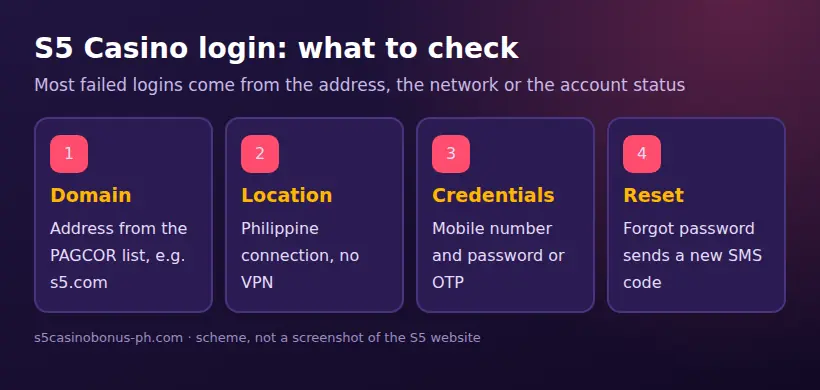
Log in through the S5 website or app with your mobile number or username and password, or choose OTP login if it is offered on the sign-in screen. Do not try to open your account through GCash GLife: that gambling link was removed in August 2025. GCash may still be available as a payment method inside the S5 cashier, which is separate from logging in.
S5 is operated by Glowlight Corporation, a company registered in the Philippines. PAGCOR's published list of accredited gaming system administrators, dated 20 October 2026, includes Glowlight Corporation under S5 Arena and lists S5 Casino and S5.com among its brand names. The listed domains include www.s5.com and s5casino.ph. Use a domain on that list, not a lookalike address. For account creation steps, see the S5 registration guide.
S5 is intended for players in the Philippines, and s5.com shows an access-restricted page outside the country. You must be 21 or older to play under PAGCOR rules. Government officials, GOCC employees and AFP/PNP members are barred from playing. If you meet the eligibility rules, follow the relevant sign-in procedure below.
Sign in on a mobile browser
- Open Chrome or Safari and enter an S5 domain listed by PAGCOR, such as www.s5.com or s5casino.ph. Check the spelling and domain before entering any account details.
- Choose the login option on the page. Enter the Philippine mobile number or username registered to your account and your password, if using password login.
- If you choose OTP login, request the code and enter the SMS one-time code on the sign-in screen. Do not share the OTP with another person, including someone claiming to be support.
- Submit the details and wait for the account page to load. If you cannot sign in, check the error table below before trying repeatedly.
The S5 mobile website works in Chrome and Safari without an app. You can add it to your home screen, but doing so does not change which domain you should use. See the S5 app and mobile access guide for the distinction between the mobile website and an installed app.
Sign in through the S5 app
- Open the S5 app you obtained through an appropriate S5 download route and confirm that it is the app you intended to open. For Android, the S5 website download section is the stated download route; use only a domain that appears in PAGCOR's list.
- Tap the login option and enter your registered mobile number or username and password, or select OTP login if available.
- If using OTP, request the SMS code and enter it in the app. Never send the code to another person or type it into a page reached from an unsolicited message.
- If login fails, check whether the app needs updating or use the S5 mobile website to see whether the problem is limited to the app.
The S5 iOS app is listed as “S5” by GLOWLIGHT CORPORATION in the App Store. The Android app was earlier on Google Play, but app trackers report it was removed in December 2025; the Android file is offered in the S5 website download section. Do not treat an APK on a third-party page as a verified S5 download. This is separate from the casino itself: the app is an access method, while games run as part of the S5 service.
Sign in on a desktop computer
- Open a current browser and enter a PAGCOR-listed S5 domain directly in the address bar.
- Select login, then enter your registered mobile number or username and password. Use OTP login instead if that option is shown and you prefer it.
- Enter the SMS code if prompted, then submit the sign-in form.
- If the account page does not open, check the domain, your location, account verification status and any error message. Contact S5 support if the account remains inaccessible.
Do not use a saved bookmark without checking its address if you are unsure where it leads. A desktop page that copies S5's appearance is not proof that it is an S5 domain.
02 · Login
S5 Casino OTP login and password recovery
OTP login uses a one-time code sent to the mobile number linked to your account. Password recovery is also handled through SMS: select “Forgot password” and follow the reset instructions sent to the registered number. You need access to that number to complete either process.
For OTP login, request the code from the sign-in page and enter it only in the corresponding S5 field. If no SMS arrives, wait briefly, check that the registered number is correct and that your phone can receive messages, then request another code if the screen allows it. Repeated requests may not solve a phone or network issue. If the number is no longer accessible, contact customer service rather than trying to register a second account.
To reset a forgotten password:
- Go to the login page on an S5 domain listed by PAGCOR.
- Select “Forgot password”.
- Enter the mobile number or other requested account detail and follow the SMS reset steps.
- Set the new password through the S5 reset flow and return to login.
Use a password you do not use for other accounts, and do not send it or the reset code to support. S5 allows login by mobile number or username plus password, or by OTP; the facts provided do not specify a fixed password format, so follow the requirements displayed in the account form. If the registered number is unavailable or the reset process fails, ask support to help verify the account.
03 · Login
Why GCash GLife login stopped
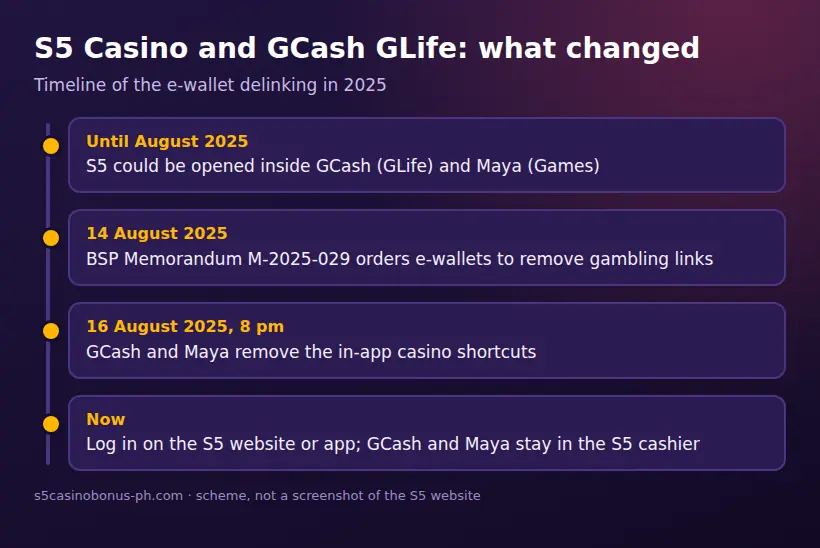
S5 can no longer be opened through GCash GLife because the gambling link was removed following a BSP directive to e-wallets. BSP Memorandum M-2025-029, dated 14 August 2025, ordered e-wallets to remove gambling links. GCash and Maya removed them on 16 August 2025 at 8 pm. This ended the GLife access route; it did not mean that your S5 account itself was automatically closed.
To return, open the S5 website or app directly and log in with your existing S5 credentials or OTP. Former GLife players do not need to treat GCash as the sign-in provider. GCash and Maya remain listed as payment methods inside the S5 cashier, alongside options such as QRPh and banks, but payments and account access are separate functions. The current cashier in your account shows the available methods and terms. For the distinction between wallet payments and login, read the GCash and S5 guide.
A published GLife comeback bonus is ₱55 for former GCash GLife players who return through the S5 website or app. Treat this as a published offer, not a promise that it will appear for every account: check the Promotions page in your own account for current eligibility and terms before depositing or playing. Bonus funds may need to finish wagering before withdrawal, so review the offer conditions first. The S5 promotions guide explains why the account Promotions page is the place to check current offers.
BSP has also published an exposure draft circular on online gambling payment services. It is a proposal, not a final rule. Do not assume that draft terms have already changed your login or cashier options.
04 · Login
S5 Casino login errors and fixes
Check the likely cause before making more login attempts. The table covers common problems listed for S5 accounts; if a fix requires account review, use the 24/7 live chat or email support rather than trying to bypass the restriction.
| Error or problem | Likely cause | What to do |
|---|---|---|
| The page looks unfamiliar or login does not work on a link | Wrong domain or a fake copy site | Close the page. Enter a domain listed by PAGCOR directly, such as www.s5.com or s5casino.ph, and check the address before entering credentials. |
| Access-restricted message | You are outside the Philippines, or a VPN is affecting your location | S5 is intended for players in the Philippines and s5.com restricts access outside the country. If you are in the Philippines and using a VPN, turn it off and retry. Do not try to get around a location restriction. |
| Account locked after wrong passwords | Repeated incorrect password attempts | Stop guessing. Use “Forgot password” for an SMS reset, or contact support if the account remains locked. Do not create another account. |
| Login or account action asks for verification | KYC is incomplete or needs review | Complete the requested verification through the S5 account process. KYC requires a valid government ID and a selfie; successful verification is confirmed by text. |
| SMS OTP is not received | The registered number may be wrong or unable to receive SMS | Check the number and phone reception, then request a code again if the page allows it. If you no longer have the number, contact support. Never use an OTP sent to someone else. |
| App does not open or login fails only in the app | The app may be old or the installed file may not be the current S5 app | Use the S5 website download section on a PAGCOR-listed domain for Android, or try the mobile website. Avoid APK files from third-party pages. |
| Old GLife shortcut no longer opens S5 | The GCash gambling link was removed on 16 August 2025 | Open S5 through its website or app instead. The old shortcut is not a password or account recovery method. |
If your account is blocked, do not keep trying random passwords, use someone else’s account or register a replacement account. Contact S5 through live chat on the website or app, or email cs@s5support.com. Give the support team the mobile number or username associated with the account and explain what happened. Do not email your password or OTP. If asked to complete KYC, submit only the requested details through the account’s verification process. One account per person is allowed, and the account name must match your ID and the e-wallet or bank account used for withdrawals.
05 · Login
Check the S5 login page is genuine
A page using the S5 name is not necessarily a domain on PAGCOR's published list. That list includes www.s5.com, s5casino.ph, bets5.ph, s5club.ph, s5-games.ph, www.s5games.ph, s5live.ph and www.s5vip.ph. Any other domain using the S5 name is not on that list. Compare the full address, including the ending after the final dot, before entering a password or OTP. See the PAGCOR and S5 guide for more on checking the listed domains.
Be cautious of messages that send you to a login page, offer free credits in exchange for an OTP, or ask you to install an unknown APK. Search phrases such as “S5 free 100”, “free 20 apk”, “free 51” and “free 15 spin” are used by third-party pages; a code is valid only if it appears in the S5 Promotions page. An OTP is for your sign-in or account action and must never be shared with a person or an unrelated website. If you entered details on a suspicious page, stop using it and contact S5 through its website or app support channels.
Use your own device where possible, avoid saving a password on a shared computer, and log out when finished on a device other people can access. Keep your password private and do not reuse it elsewhere. These steps reduce the chance of someone else using an open session or credentials, but they do not replace checking the domain each time.
06 · Login
S5 Casino customer service and blocked accounts
S5 lists 24/7 live chat on its website and app, the email address cs@s5support.com, and a contact form at s5.com/contact-us. Use the chat or email if you cannot reach the account page; use the contact form if you can access the S5 website. Explain the issue clearly, including whether you see a password error, OTP problem, access restriction, KYC request or blocked-account message.
For an account block, ask support what verification or account step is required. Have your account mobile number or username available, but do not include your password or send an OTP. The account must be in your own name: S5 permits one account per person, and the name must match your valid government ID and the e-wallet or bank account used for withdrawals. Verification requires an ID and selfie, with a text confirmation after successful completion. For higher withdrawals, S5 may request a video KYC call; it must be completed within 72 hours or the withdrawal can be cancelled. Follow the instructions given for your own account rather than submitting someone else’s documents.
If support asks you to complete KYC, use the account process and provide the requested ID and selfie. If you cannot receive a text because your registered number is unavailable, tell support that directly. Keep a record of the support response and do not open another account while waiting, as the one-account-per-person rule still applies.
07 · Login
Before you sign in and play
Login access is not the same as approval to deposit or play. You must be at least 21 under PAGCOR rules, and the listed exclusions for government officials, GOCC employees and AFP/PNP members apply. S5 uses Philippine pesos, and PAGCOR rules do not allow credit cards or crypto for betting; S5 does not work with crypto. Check the account cashier for current payment routes and published figures before using a payment method.
Keep withdrawal details in your own name. If you choose a bonus, read the current terms in Promotions before accepting it: published bonus funds must complete wagering before withdrawal. The published GLife comeback bonus is ₱55, but its current availability and conditions should be checked in your own account. Do not rely on an old message or an external page for an offer.
If gambling is causing concern, use S5's self-exclusion, deposit limits, reminders and educational materials, or contact the National Problem Gambling Helpline. PAGCOR information is available at Responsible Gaming, and its OSEA self-exclusion portal provides another route. You can also visit the National Problem Gambling Helpline.
FAQ
Questions about S5 Casino
How do I use S5 casino login in the Philippines?
Open the S5 website or app on a PAGCOR-listed domain and enter your registered mobile number or username and password. You can use OTP login if that option is shown. GCash GLife is no longer an S5 access route.
Can I use S5 casino GCash login through GLife?
No, S5 cannot be opened through GCash GLife since gambling links were removed on 16 August 2025 at 8 pm. Log in through the S5 website or app instead. GCash may still be available in the S5 cashier as a payment method.
How does S5 casino app login work?
Open the S5 app and sign in with your registered mobile number or username and password, or use OTP if available. For Android, use the S5 website download section on a domain listed by PAGCOR; the mobile website also works in Chrome and Safari.
What should I do if I forgot my S5.com login password?
Select “Forgot password” on the S5 login page and follow the SMS reset steps for your registered number. If you cannot access that number or the reset does not work, contact S5 customer service. Do not share your OTP or create a second account.
How do I contact S5 Casino customer service if my account is blocked?
Use 24/7 live chat on the S5 website or app, email cs@s5support.com, or use the contact form at s5.com/contact-us. Give support your account mobile number or username and explain the block, but never send your password or OTP.